How to prevent users from sharing
If you are the organizer, you can prevent meeting members from sharing by switching them from presenter to participant.How to prevent users from sharing during a meeting
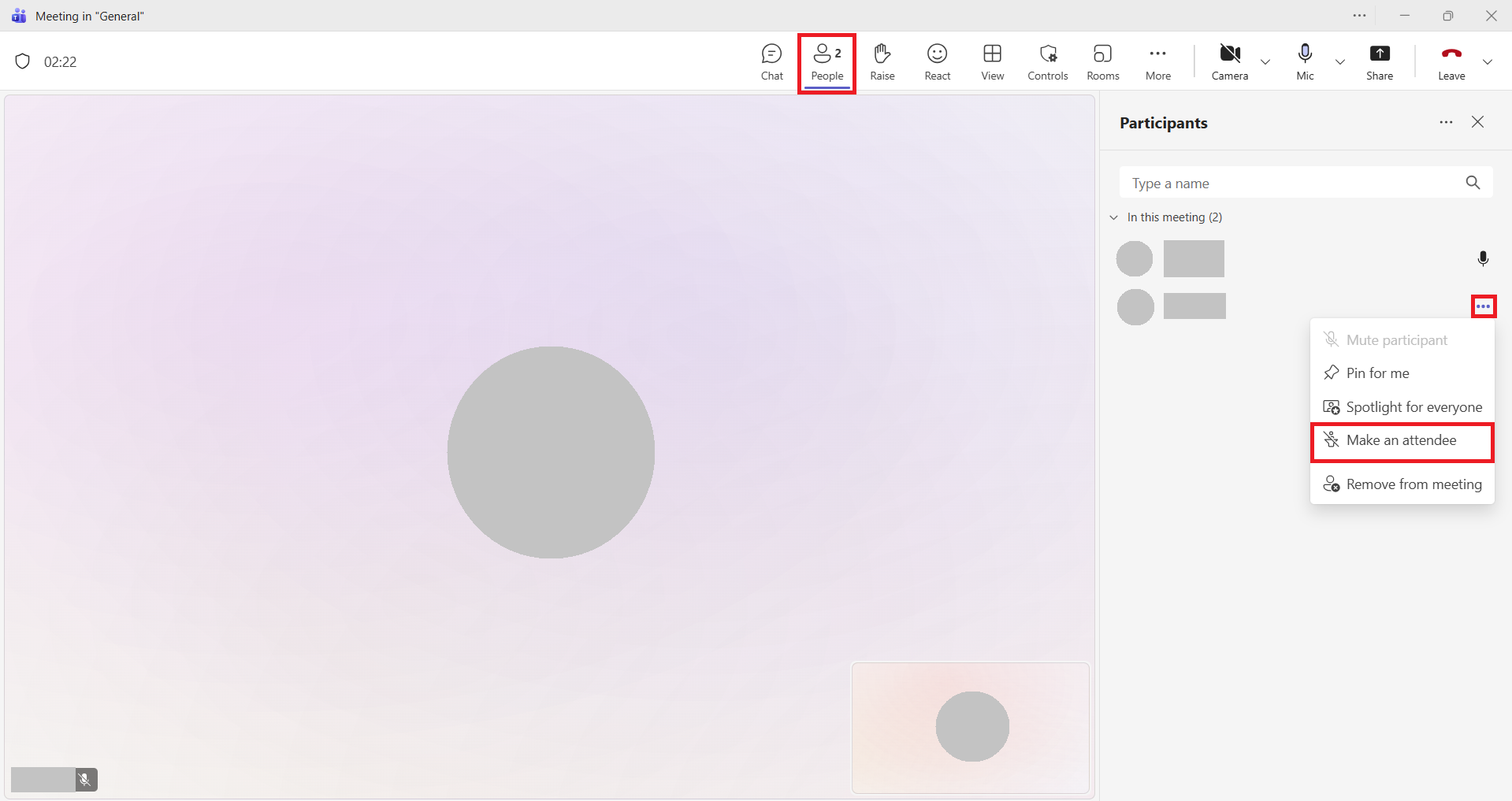
- Click on "Participants" on the screen.
- Click the '...' to the right of the participant you want to share with.
- Click "Make Attendee". Once you become an attendee, you will no longer be able to share your screen.
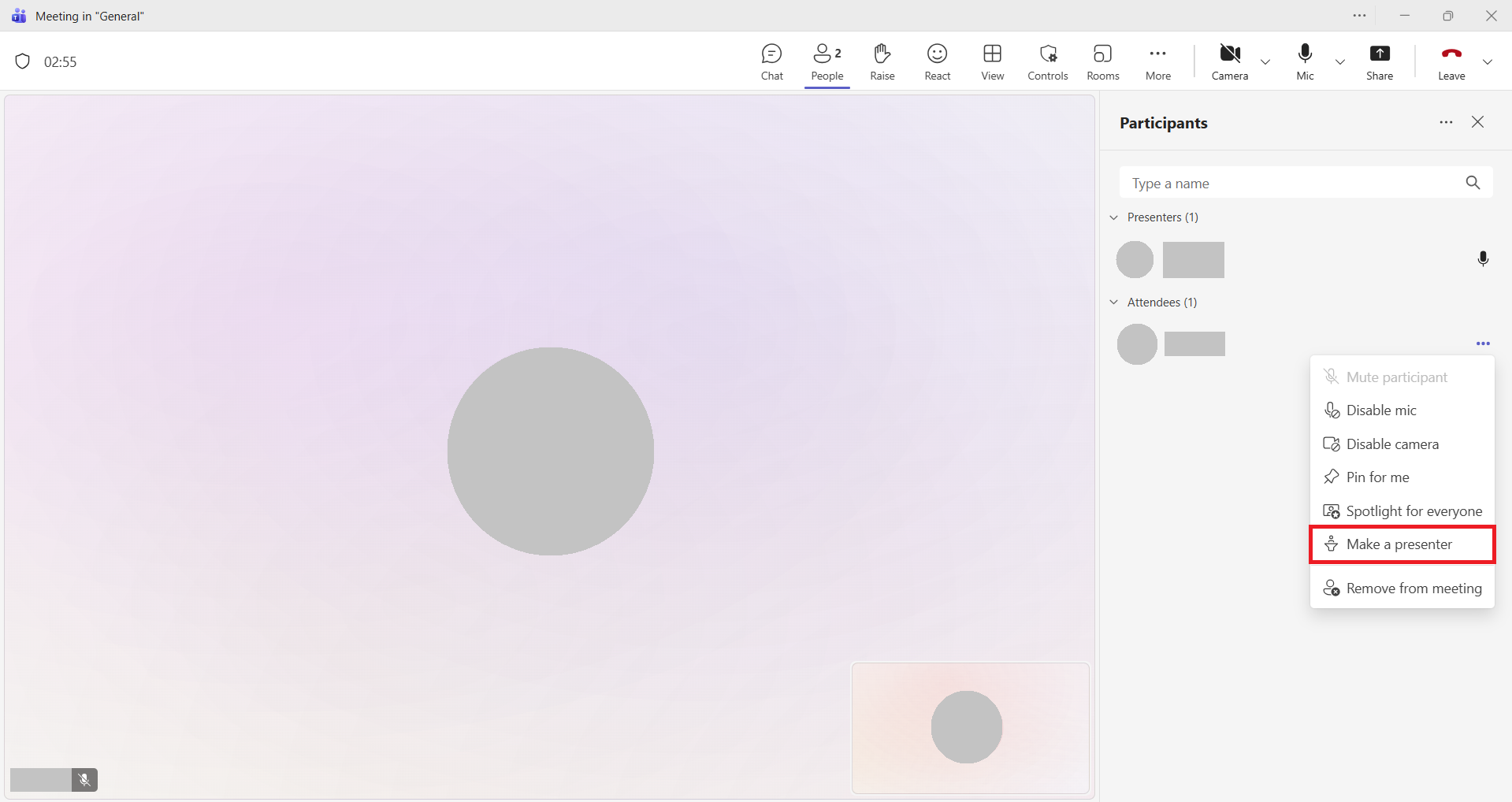
- If you want to allow screen sharing again, click "Make Presenter."
How to prevent users from sharing before a meeting
This is a method to use before the meeting, but any changes you make to the settings during the meeting will also be reflected.
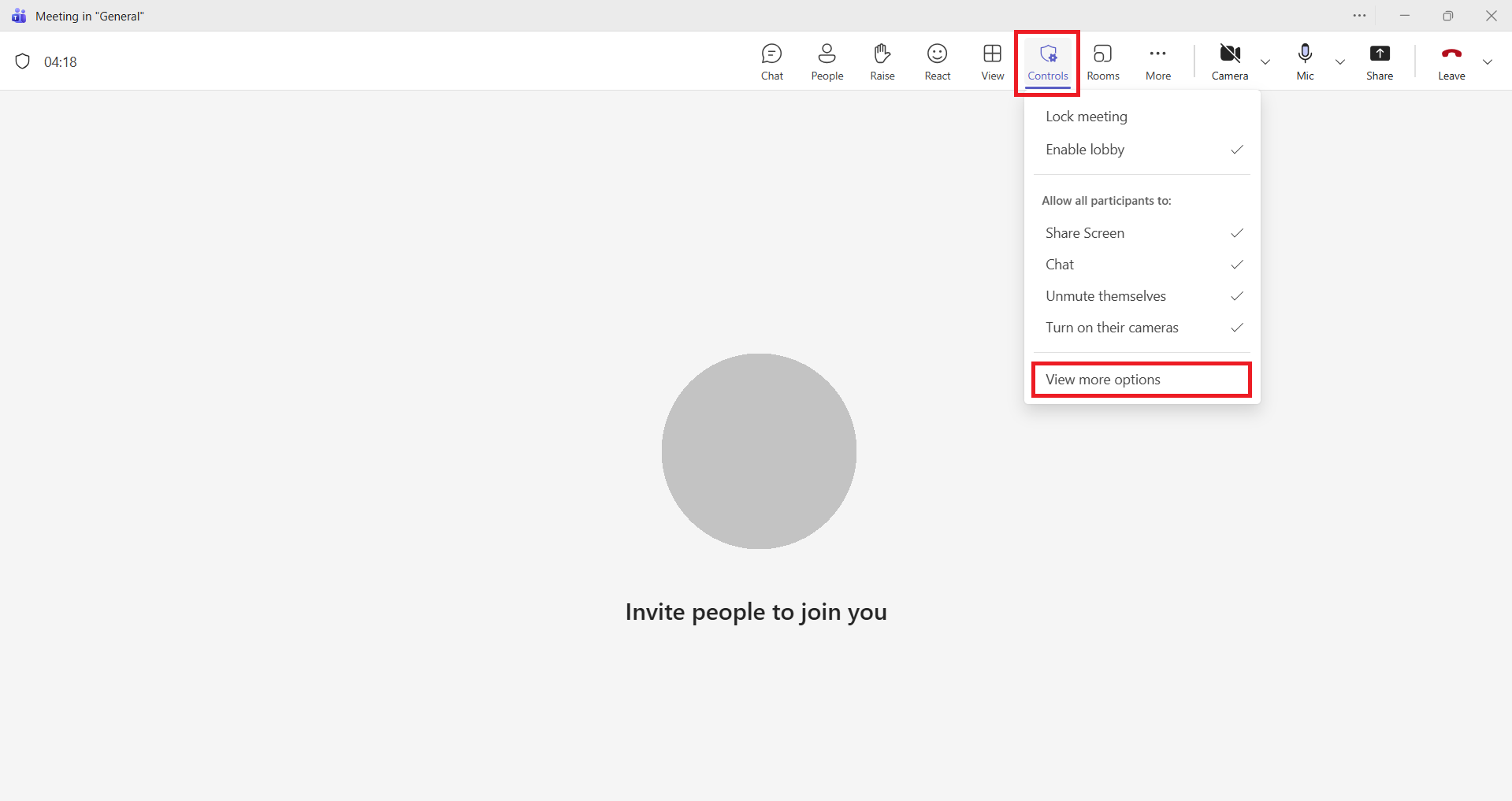
- Click "More" on the screen, select "Settings," and then select "Meeting Options."
- Select "Roles" from the menu on the left side of the screen and select "Users who will be presenters."
- Change the users who will be presenters from "Everyone" to "Organizer and Co-organizers" and save.
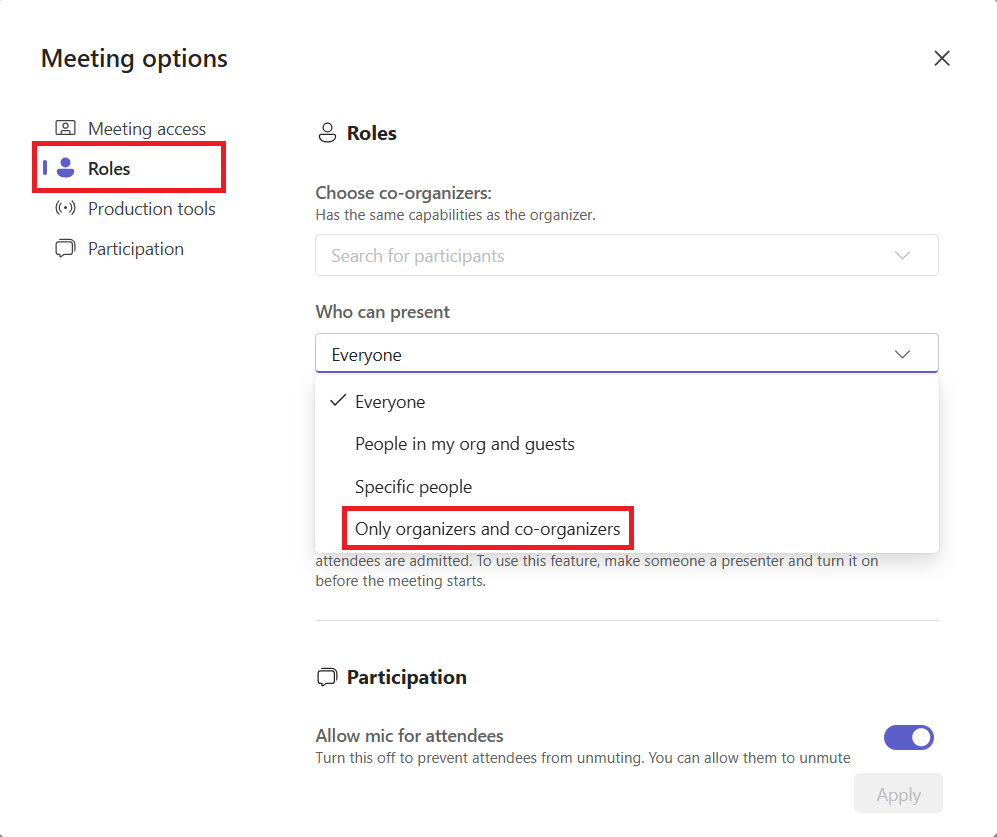
- New participants will become "attendees" and will no longer be able to share.