Secure VPN Connection Service(IPsec VPN)
How to use Secure VPN Connection Service(iPad,iPhone,iPod touch)
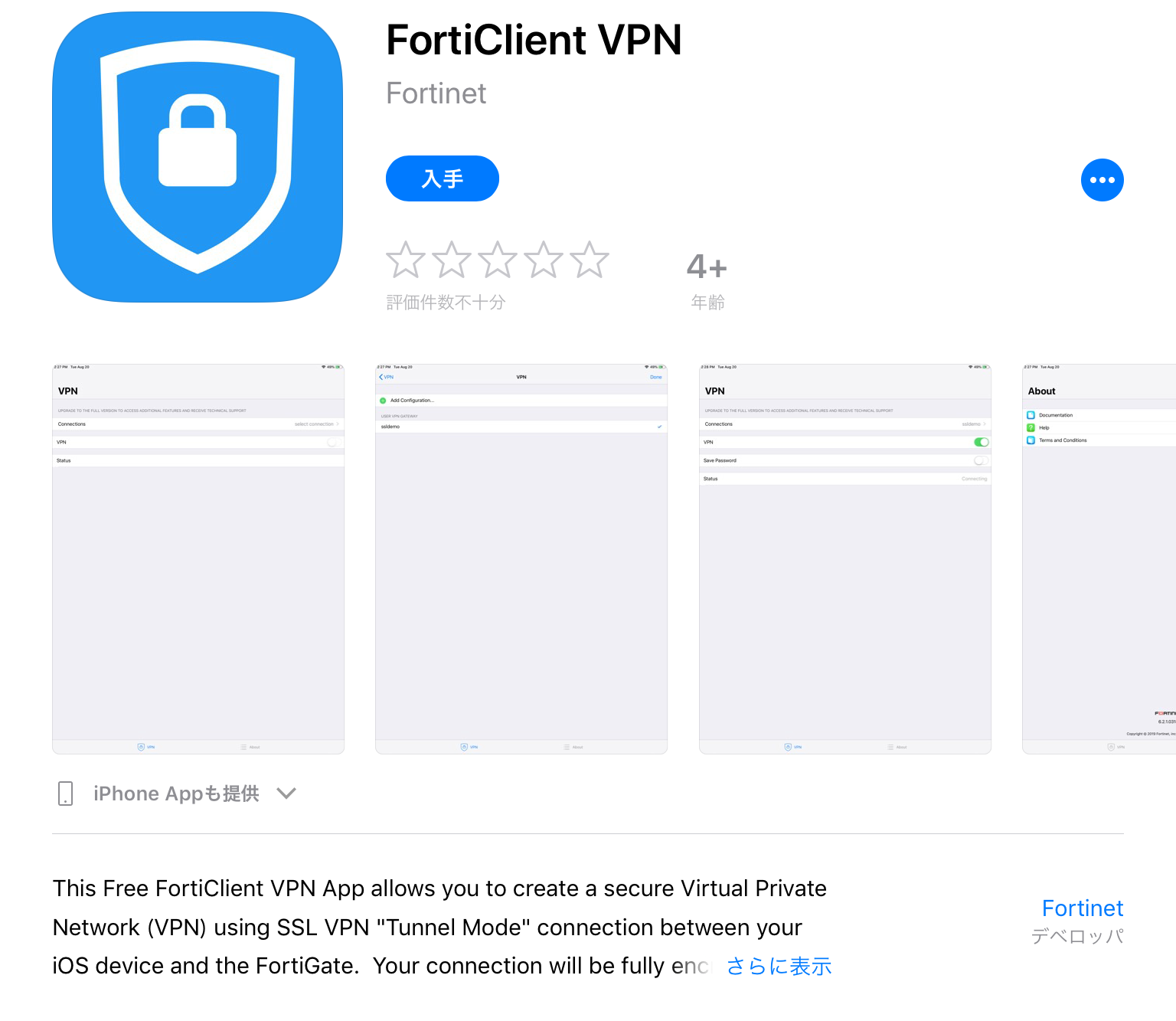
- Install FortiClient. Please move from the official site of Fortigate to the App store.
FortiClient official website
- Please tap "入手"(it means get) to install the application.
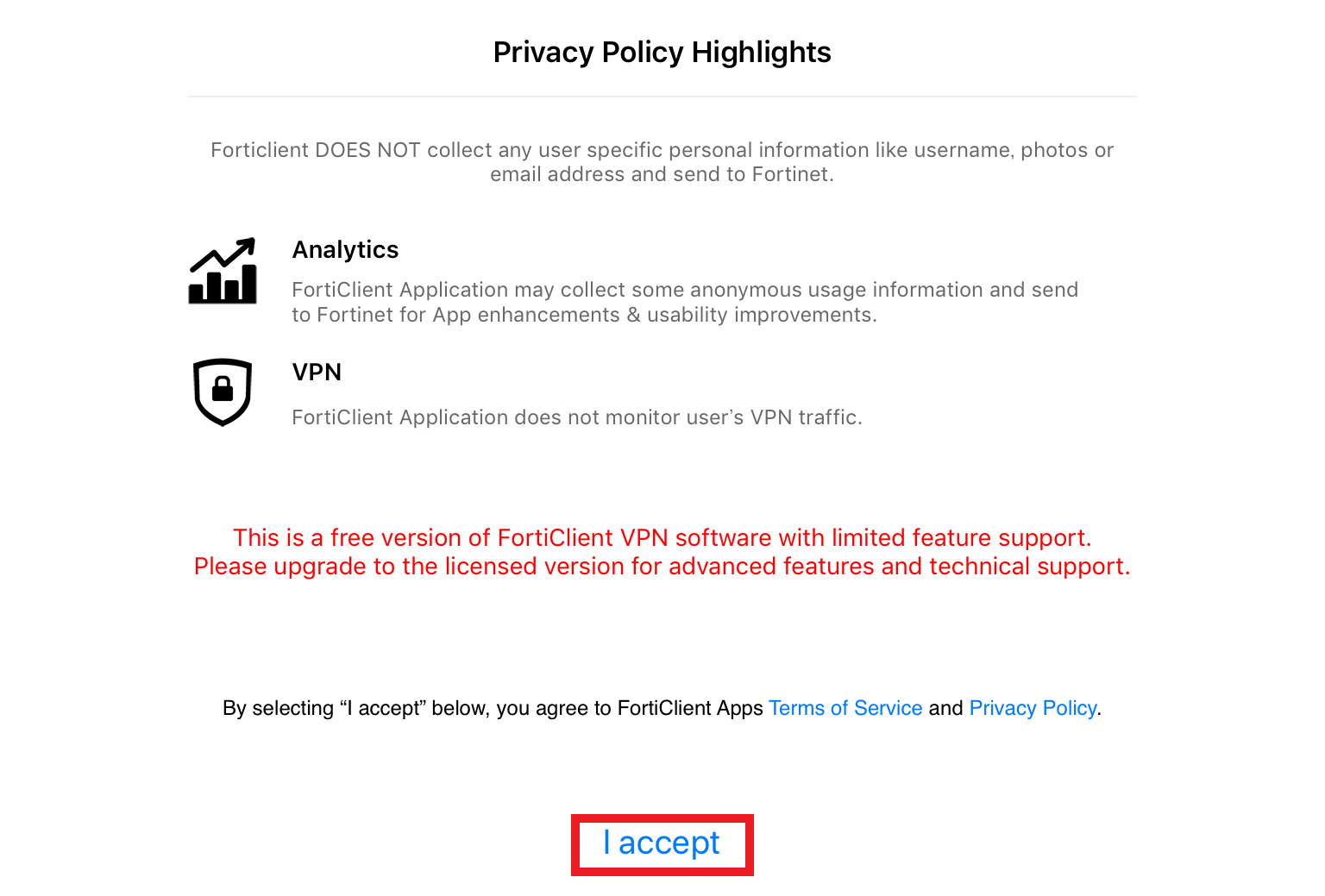
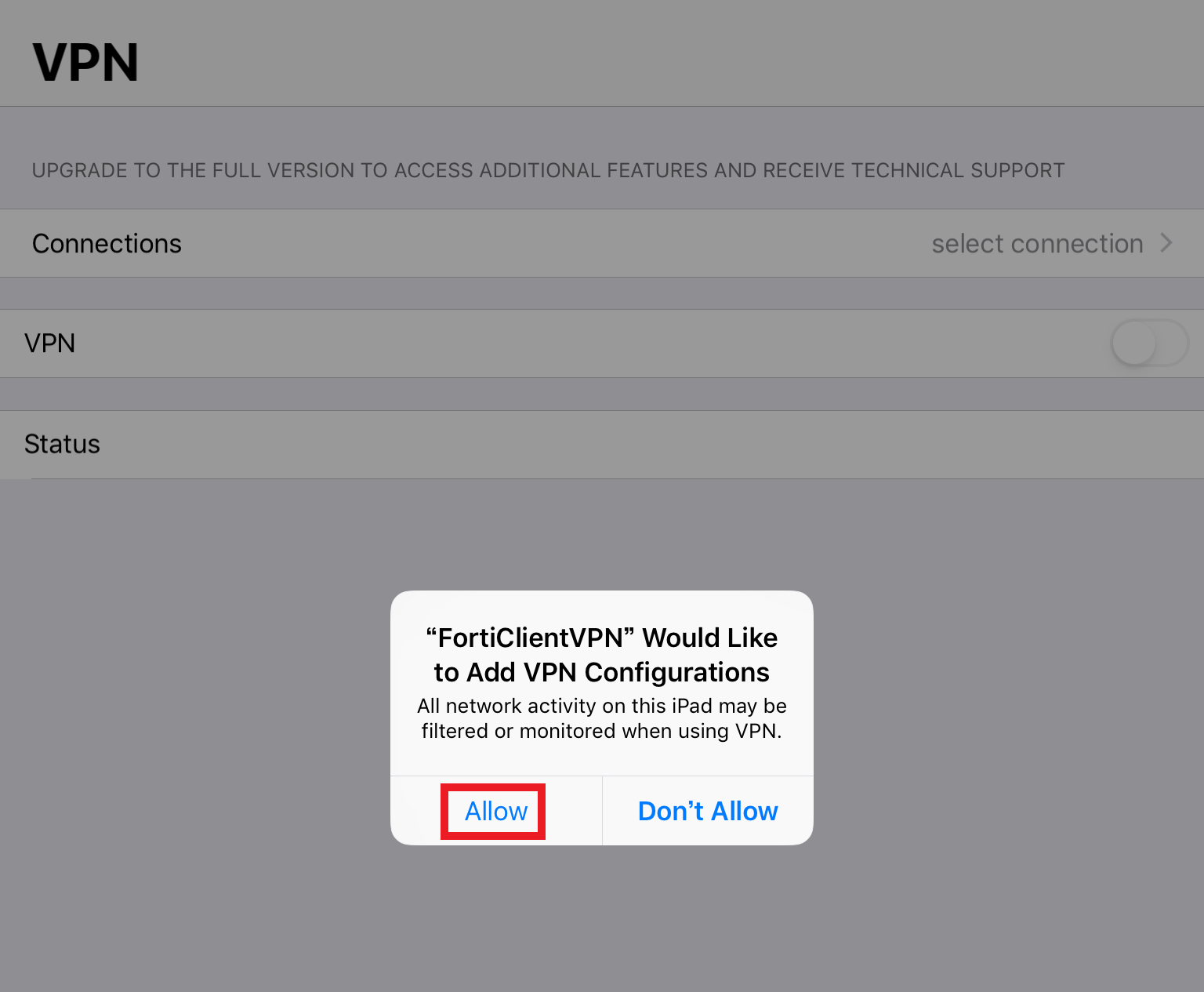
- Run the installed app and select 'I accept'. After that, select 'Allow' with precautions confirmation.
- Please select 'Connections'.
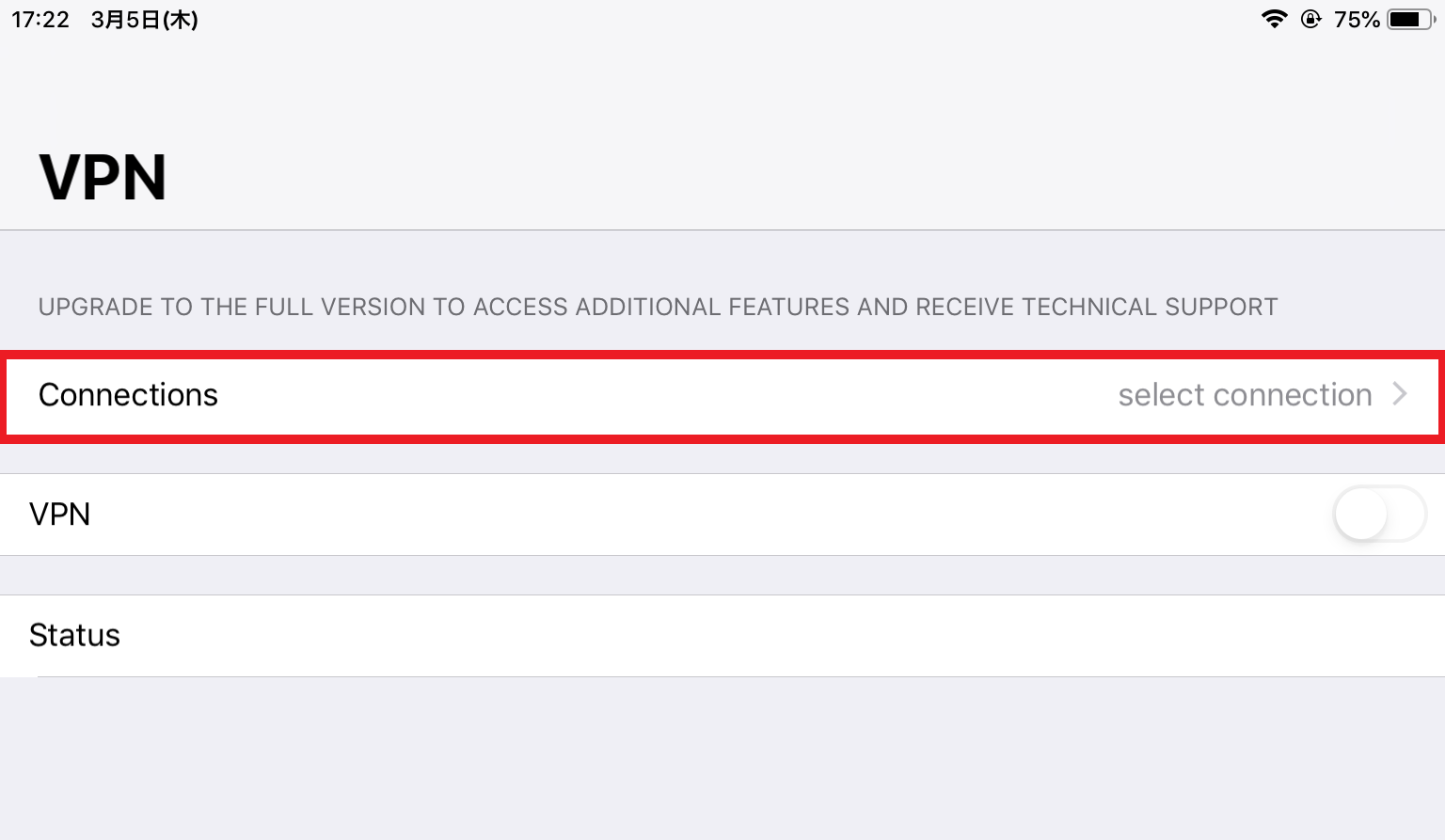
- Please select 'Add Configuration'
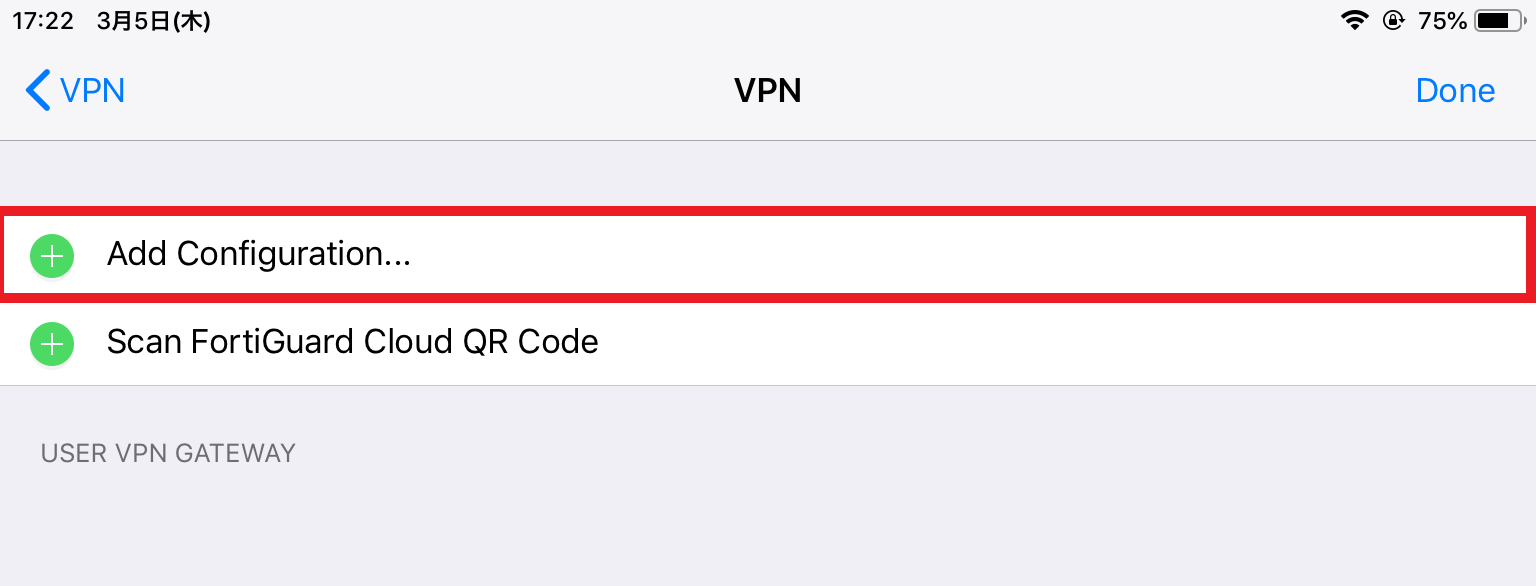
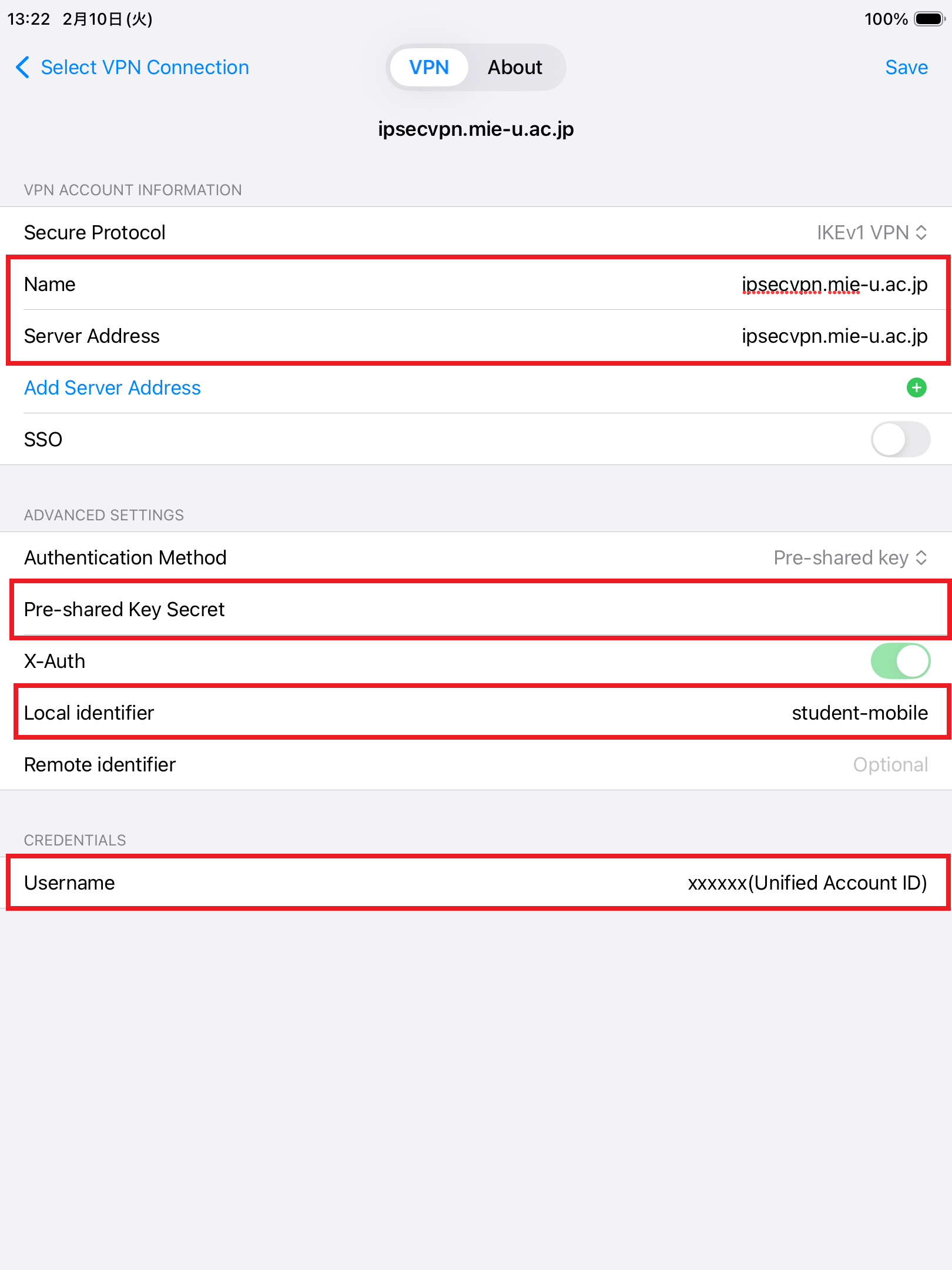
- Please set below.
- Secure Protocol:IKEv1 VPN
- Name:ipsecvpn.mie-u.ac.jp
- Server Address:ipsecvpn.mie-u.ac.jp
- Authentication Method:Pre-Shared Key
- Pre-shared key Secret:Click here to enter your content
- X-Autht:ON
- Local identifier:
For faculty and staff: staff-mobile
For student: student-mobile
- Username: Unified Account ID
And please tap Save in the upper right.(Please refer to the screen below).
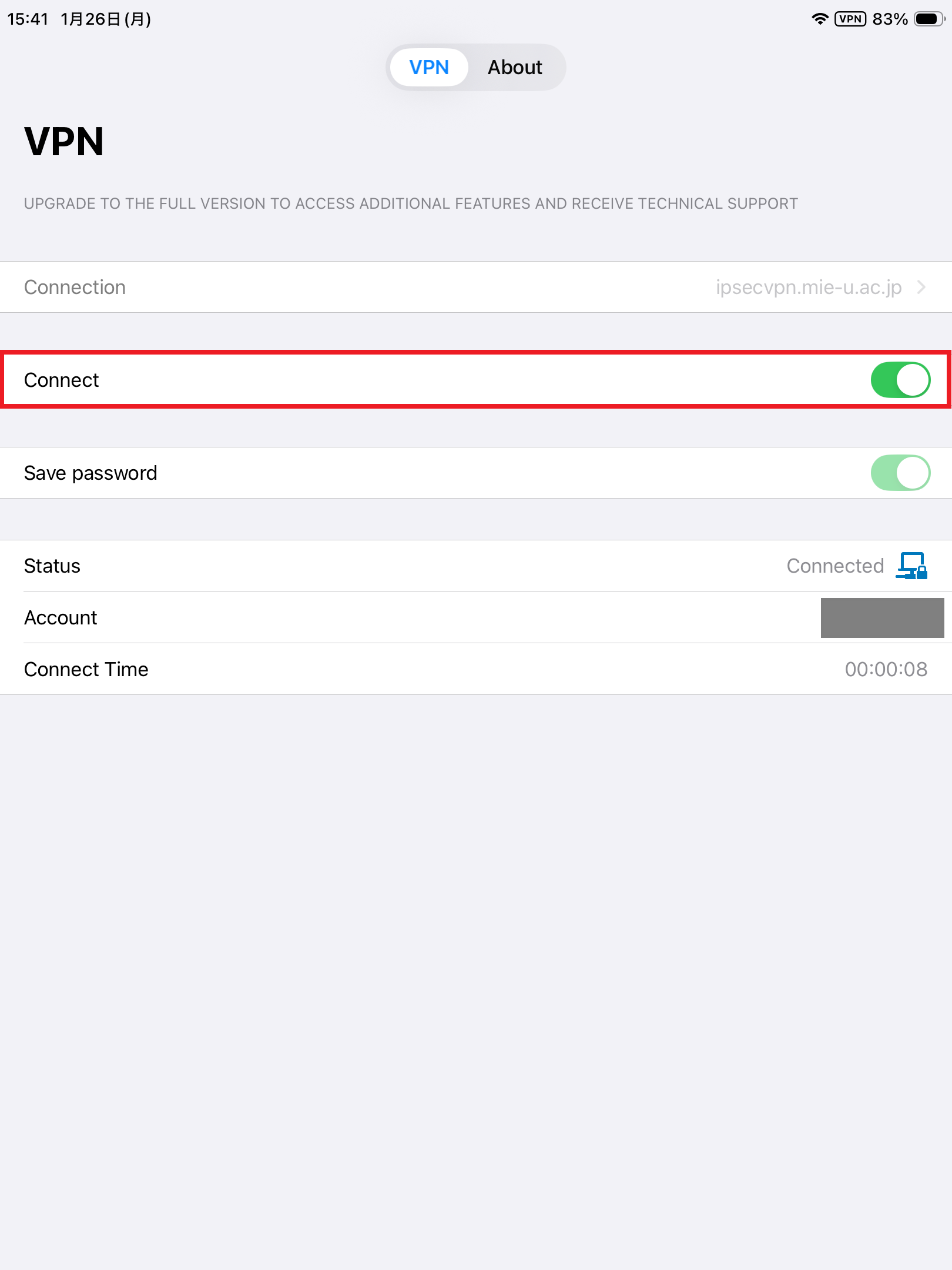
- Please tap the Connect toggle switch,
and enter the unified account password and tap "OK".
("Unified Account ID" means student ID. please input your ID in this spase.)
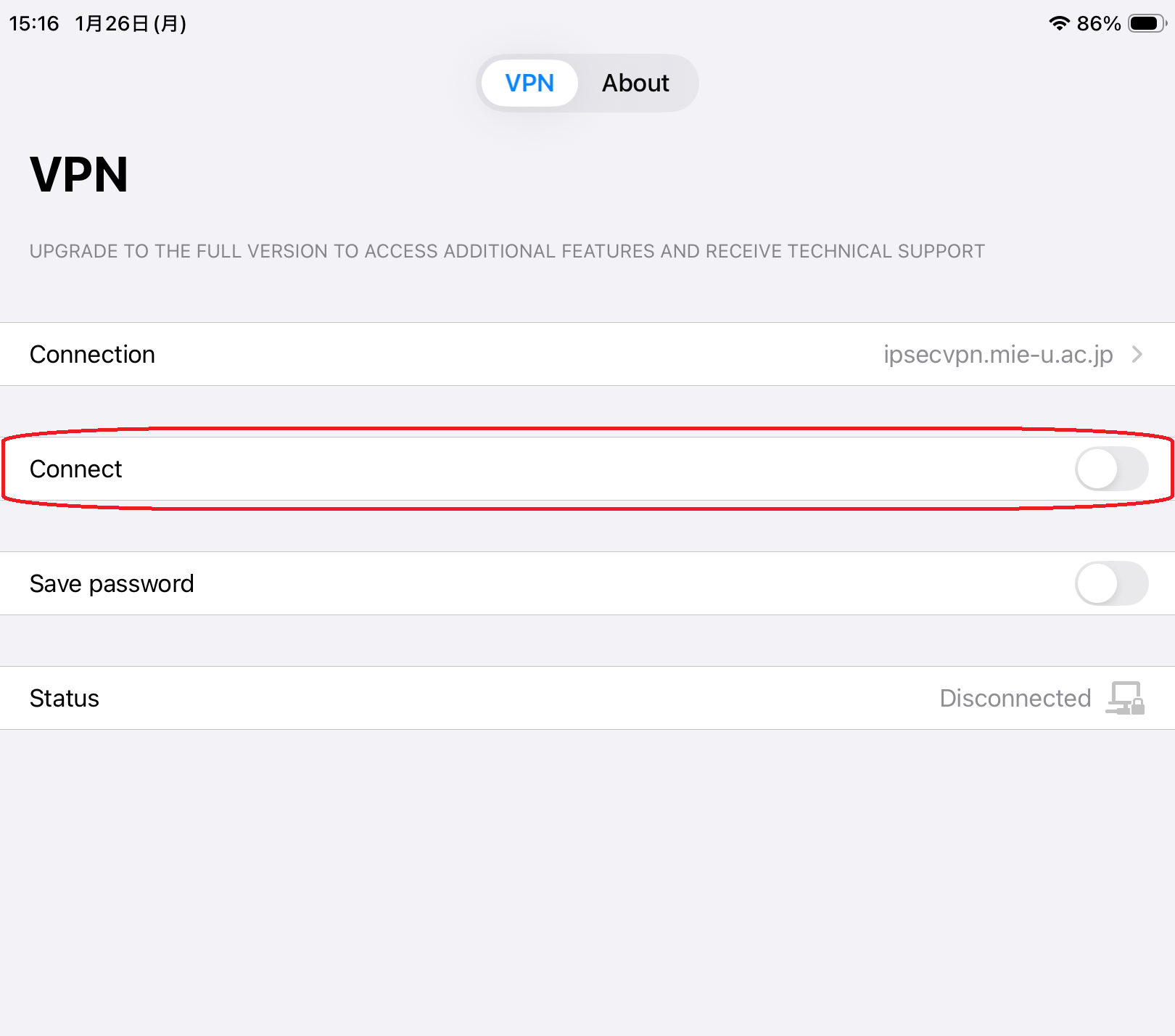
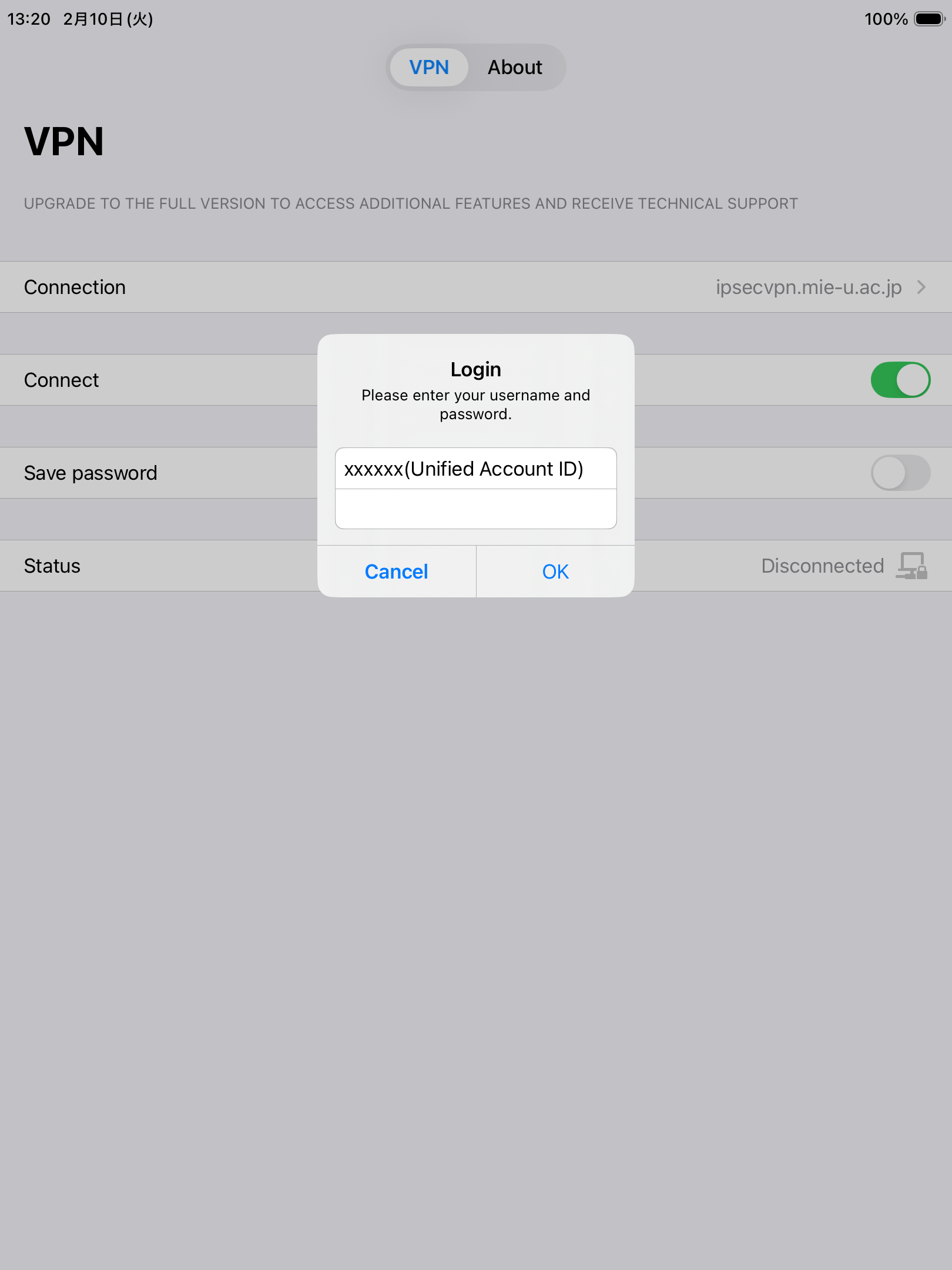
- if Status is "Connected", Secure VPN Connection is completed. Please check whether you can see the in-campus page.
When you finish using it, Please change off Connect toggle switch.